
Calculated numbers
Numbers BuzzBuff works out, such as medians, multiples and ratios, carry an info marker meaning Calculated by BuzzBuff, not a YouTube metric. Missing data shows as unavailable, never as zero.
Short clips of the four things people ask about most, with the steps beside them. Answers about plans, credits and your account are further down.
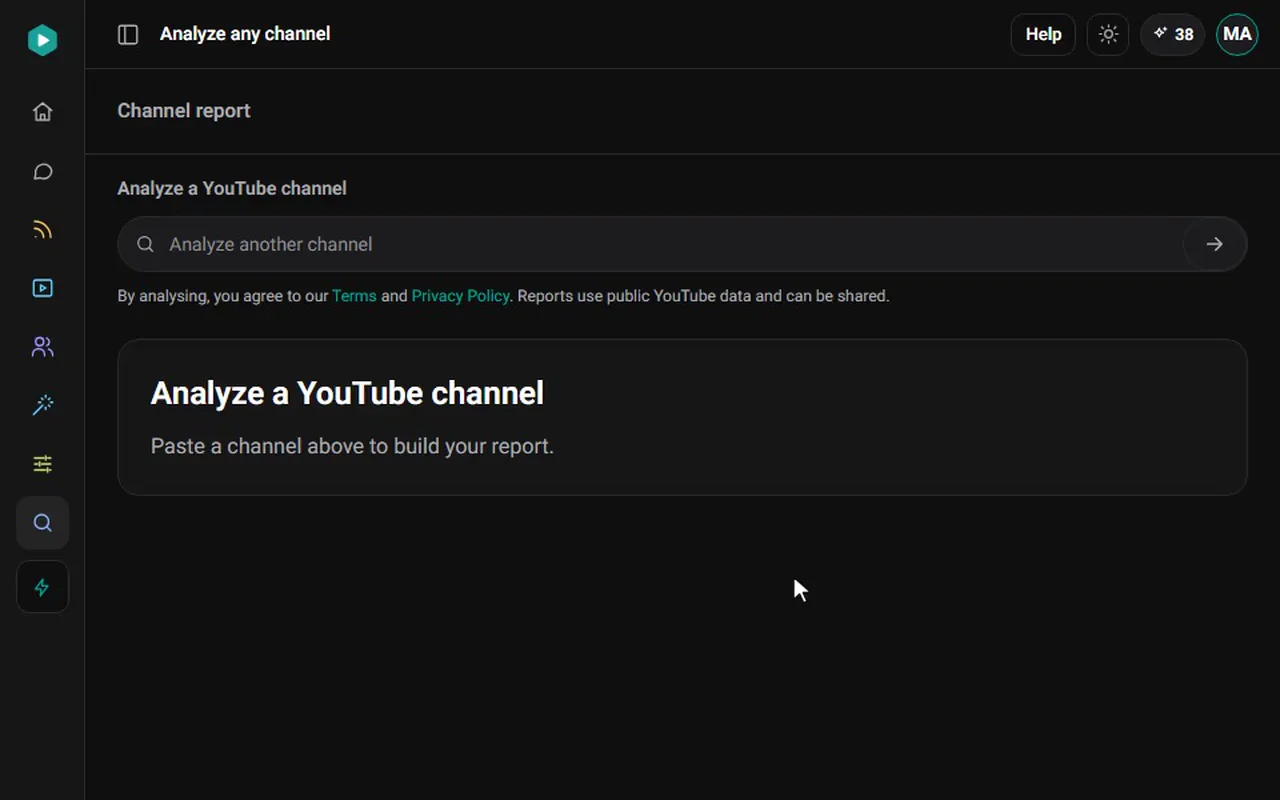
Free accounts run 3 reports a day; Pro and Max are unlimited within fair use (100 a day). Reports never spend AI credits.
Older uploads have had longer to collect views, so compare videos of a similar age.
Free accounts receive 50 AI credits a month, Pro 800 and Max 3,000. Monthly credits and claimed bonuses reset on the first day of the month at 00:00 UTC.
Ask Buzzi, BuzzBuff’s AI agent: a Quick answer costs 1–2 credits, Deep 3–4. The Deal analyzer reviews the terms of a sponsorship offer for 1–2 credits, more for longer offers. A failed generation is refunded.
Numbers BuzzBuff works out, such as medians, multiples and ratios, carry an info marker meaning Calculated by BuzzBuff, not a YouTube metric. Missing data shows as unavailable, never as zero.
Choose Refresh report for an update. Data fetched in the last 24 hours may be reused. If part of a report fails, retry to continue. Shared reports require an account to open; your paid report stays private to you.
Momentum compares the latest 30 uploads with the channel’s usual range, posting rhythm shows when videos went live in your time zone, and the SEO checklist flags titles, descriptions, chapters, hashtags and links worth a look.
The video generator shows its price before you start. Finished clips stay available for 30 days, so download the ones you want to keep. Every AI tool spends the same credit balance. See them all on BuzzBuff tools.
See pricing for report, research and AI allowances. Reports and YouTube research use their own limits and do not spend AI credits. Manage your subscription, invoices and cancellation in Billing.
Update your channel, time zone and email preferences in Settings. You can also delete your account there.
Email support@buzzbuff.com for help or a public-data correction, and include the relevant report link.